Plain View Files - sorting on column heading behaves wrong
Posted: 20.02.2016, 22:21
If a "parent" folder (containing sub-folders) is selected and then View -> Plain view files is selected, all of the files from all of the sub-folders are presented in a single list, as if there were no sub-folders.
However if you then click on a column heading to sort the single file list on that column heading value, I expect to see the results presented as one single list sorted by that column as if there were no folders at all, and that all files were in the single parent folder!
Well, that's not what happens. Instead it seems all that's happened is that the sub-folder names were removed when presenting the single file list, but the individual file names are still thought of as being within those sub-folders. So when you click on a column heading to sort the file list by that column's values, there are multiple sub-sorts, for each implied folder group of file names. At least that's how it kind of looks.
In any case, and whatever is actually happening, the sort on column heading in Plain View Files IS NOT WORKING AS EXPECTED.
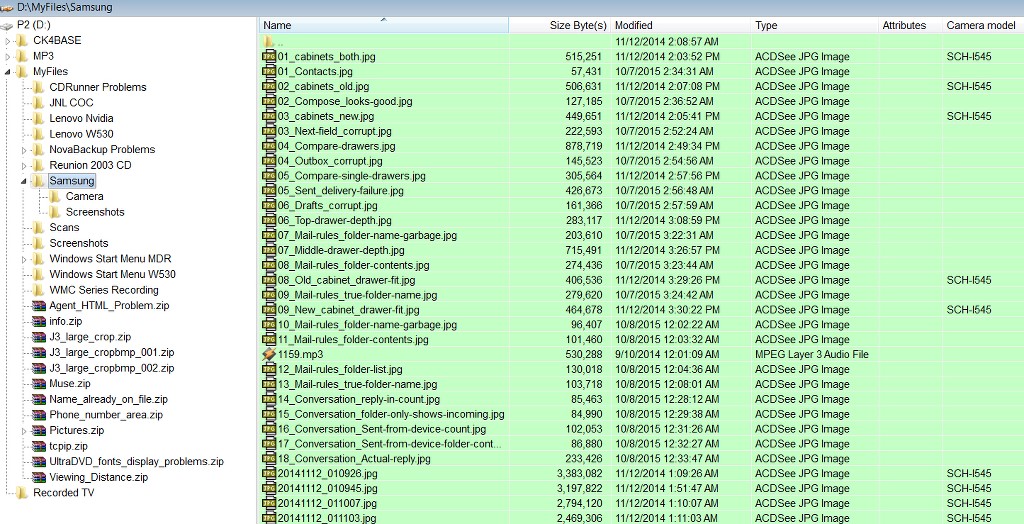
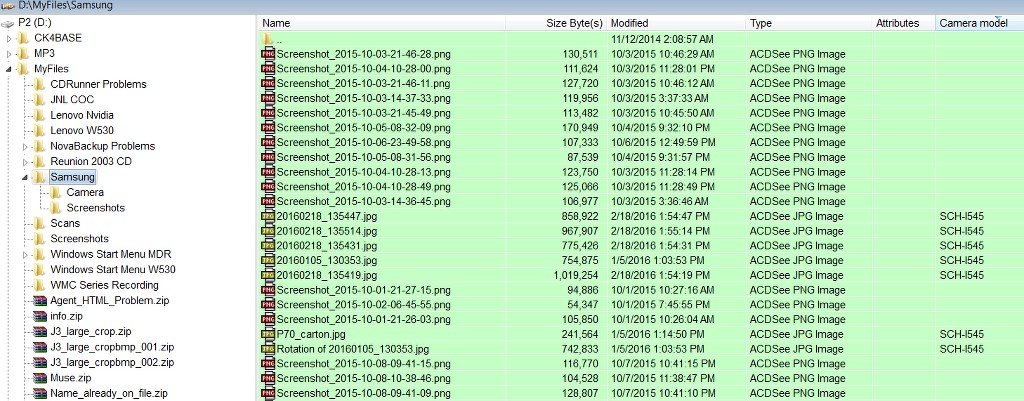
Here's an example, the added column of "camera model". I wanted to get all of the JPG files taken by my Samsung Galaxy S4 phone camera (SCH-I545 is the "camera model") placed in a separate folder.
Here's the original un-sorted view, from Plain View Files.
And here's the sorted view after clicking on the "camera model" column heading. Note the "clusters" of file names.
However if you then click on a column heading to sort the single file list on that column heading value, I expect to see the results presented as one single list sorted by that column as if there were no folders at all, and that all files were in the single parent folder!
Well, that's not what happens. Instead it seems all that's happened is that the sub-folder names were removed when presenting the single file list, but the individual file names are still thought of as being within those sub-folders. So when you click on a column heading to sort the file list by that column's values, there are multiple sub-sorts, for each implied folder group of file names. At least that's how it kind of looks.
In any case, and whatever is actually happening, the sort on column heading in Plain View Files IS NOT WORKING AS EXPECTED.
Here's an example, the added column of "camera model". I wanted to get all of the JPG files taken by my Samsung Galaxy S4 phone camera (SCH-I545 is the "camera model") placed in a separate folder.
Here's the original un-sorted view, from Plain View Files.
And here's the sorted view after clicking on the "camera model" column heading. Note the "clusters" of file names.